
1.模板语法
<template>
  <!-- 插值表达式 -->
  <p>{{ message }}</p>

  <!-- 指令 -->
  <p v-text="message"></p>
  <p v-html="htmlContent"></p>
</template>
2.数据绑定
<!-- 单向绑定 -->
<img v-bind:src="imageUrl" />

<!-- 简写 -->
<img :src="imageUrl" />
3.事件处理
<!-- 事件绑定 -->
<button v-on:click="handleClick">点击我</button>
<!-- 简写 -->
<button @click="handleClick">点击我</button>

<!-- 事件修饰符 -->
<button @click.stop="handleClick">阻止冒泡</button>
<button @click.prevent="handleSubmit">阻止默认行为</button>
4.计算属性
<script setup lang="ts">
import { ref, computed } from 'vue'

const count = ref(0)
// 计算属性 - 自动缓存,依赖变化时重新计算
const doubleCount = computed(() => count.value * 2)
</script>
5.ref和reactive
<script setup lang="ts">
import { ref, reactive } from 'vue'

// 基本类型响应式数据
const count = ref(0)

// 对象类型响应式数据
const user = reactive({
  name: '张三',
  age: 30
})
</script>
6.watch和watchEffect
// 监听单个数据源
watch(count, (newVal, oldVal) => {
  console.log(`count变化: ${oldVal} -> ${newVal}`)
})

// 监听多个数据源
watch([count, user], ([newCount, newUser], [oldCount, oldUser]) => {
  console.log('数据变化了')
})

// 自动追踪依赖
watchEffect(() => {
  console.log(`当前count: ${count.value}`)
})
7.生命周期钩子
import { onMounted, onUpdated, onUnmounted } from 'vue'

onMounted(() => {
  console.log('组件挂载完成')
})

onUpdated(() => {
  console.log('组件更新完成')
})

onUnmounted(() => {
  console.log('组件卸载完成')
})
8.Props(父向子通信)
<!-- 父组件 -->
<ChildComponent :message="parentMessage" :count="parentCount" />

<!-- 子组件 ChildComponent.vue -->
<script setup lang="ts">
import { defineProps } from 'vue'

const props = defineProps<{
  message: string
  count: number
}>()
</script>
9.Emit(子向父通信)
<!-- 子组件 ChildWithEmit.vue -->
<script setup lang="ts">
import { defineEmits } from 'vue'

const emit = defineEmits<{
  (e: 'update:count', value: number): void
  (e: 'send-message', message: string): void
}>()

const increment = () => {
  emit('update:count', props.count + 1)
}
</script>

<!-- 父组件 -->
<ChildWithEmit
  :count="parentCount"
  @update:count="parentCount = $event"
  @send-message="handleMessage"
/>
10.Provide/Inject(跨层级通信)
<!-- 顶层组件 -->
<script setup lang="ts">
import { provide, ref } from 'vue'

const globalData = ref('全局数据')
provide('globalData', globalData)
</script>

<!-- 深层组件 -->
<script setup lang="ts">
import { inject } from 'vue'

const globalData = inject('globalData', ref('默认值'))
</script>
11.解构响应式对象:toRefs
import { reactive, toRefs } from 'vue'

const user = reactive({ name: '张三', age: 30 })
const { name, age } = toRefs(user)

// name和age保持响应式
name.value = '李四'
12.浅响应式,shallowRef,shallowReactive,只对第一层属性响应式
import { shallowRef, shallowReactive } from 'vue'

// 只对第一层属性响应式
const shallowObj = shallowReactive({
  count: 0,
  nested: { value: 0 } // 非响应式
})
13.条件渲染,v-if,v-show
<!-- v-if -->
<div v-if="show">显示内容</div>
<div v-else-if="showElse">显示其他内容</div>
<div v-else>默认内容</div>

<!-- v-show -->
<div v-show="show">显示内容</div>
14.列表渲染 v-for
<!-- 基本列表 -->
<ul>
  <li v-for="item in items" :key="item.id">{{ item.name }}</li>
</ul>

<!-- 带索引 -->
<ul>
  <li v-for="(item, index) in items" :key="index">{{ index + 1 }}. {{ item.name }}</li>
</ul>

<!-- 对象遍历 -->
<div v-for="(value, key) in user" :key="key">
  {{ key }}: {{ value }}
</div>

<!-- 数字遍历 -->
<div v-for="n in 5" :key="n">第{{ n }}个元素</div>
15.表单处理,v-model 双向绑定
<!-- 文本输入 -->
<input v-model="text" type="text">

<!-- 多行文本 -->
<textarea v-model="textarea"></textarea>

<!-- 单选按钮 -->
<input v-model="radio" type="radio" value="选项1">选项1
<input v-model="radio" type="radio" value="选项2">选项2

<!-- 复选框 -->
<input v-model="checkbox" type="checkbox">

<!-- 下拉选择 -->
<select v-model="select">
  <option value="选项1">选项1</option>
  <option value="选项2">选项2</option>
</select>
16.v-model的修饰符
<!-- 延迟更新 -->
<input v-model.lazy="text" type="text">

<!-- 数字转换 -->
<input v-model.number="age" type="number">

<!-- 去除首尾空格 -->
<input v-model.trim="text" type="text">
17.自定义指令 Directive
<script setup lang="ts">

import { Directive } from 'vue'

// 自动聚焦指令
const vFocus: Directive = {
  mounted(el) {
    el.focus()
  }
}

// 带参数的指令
const vColor: Directive<HTMLElement, string> = {
  mounted(el, binding) {
    el.style.color = binding.value
  },
  updated(el, binding) {
    el.style.color = binding.value
  }
}
</script>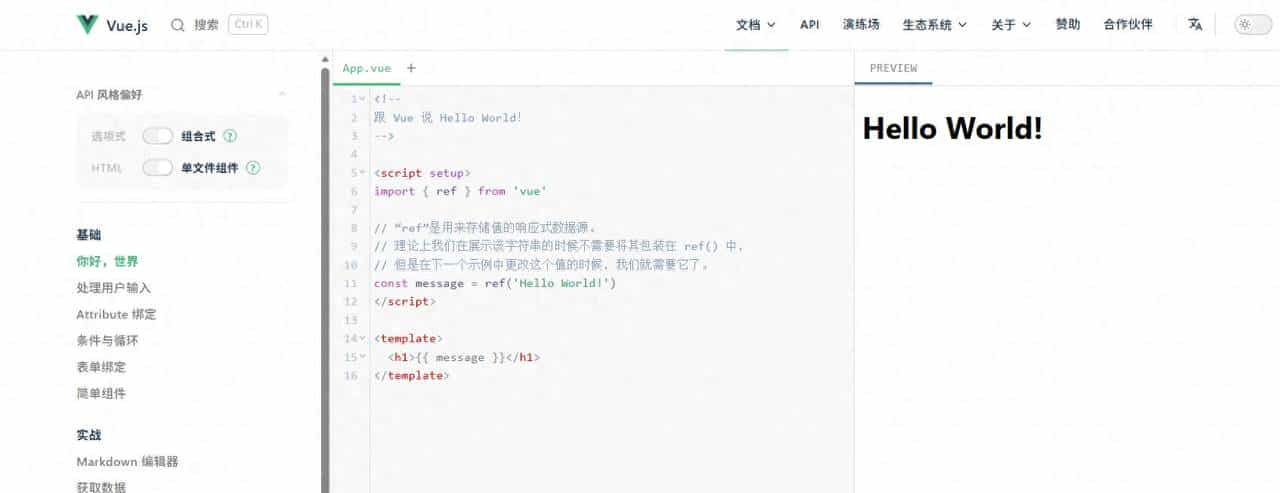
© 版权声明
文章版权归作者所有,未经允许请勿转载。












收藏了,感谢分享